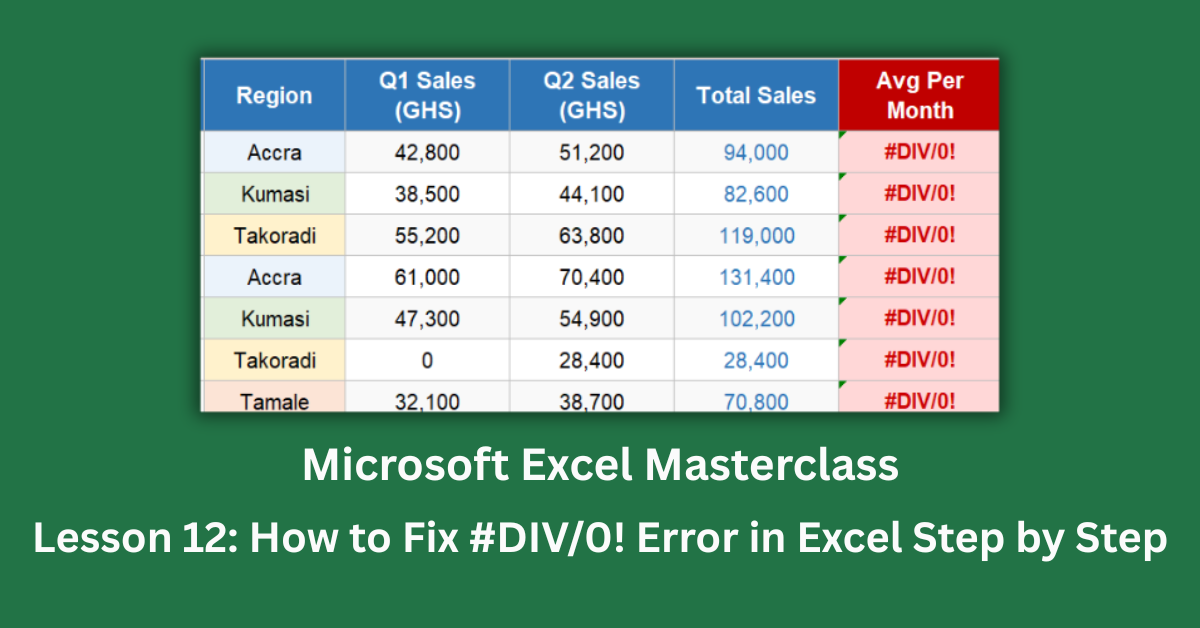
The #DIV/0! error is one of the most common errors in Excel, and it’s also one of the most misunderstood. Most people see it, panic slightly, and add an IFERROR wrapper around the formula to make it disappear. That works — sometimes. But it also hides genuine mistakes, and it doesn’t always address the actual reason the error appeared in the first place.
The #DIV/0! error means Excel tried to divide a number by zero, or by a blank cell, and couldn’t complete the calculation. Understanding which of those situations you’re dealing with changes how you fix it. A formula dividing by a hardcoded zero needs a different fix than a formula dividing by a cell that happens to be empty. And a growth rate formula that errors because a new sales rep has no Q1 data needs a different approach again.
This post covers every cause of the #DIV/0! error, with specific formulas for each one. The examples come from a 25-rep sales performance dataset where five different error types appear across different columns — so every fix is grounded in a real scenario.
Quick Takeaways:
- #DIV/0! always means division by zero or division by a blank cell. The fix depends on which one you’re dealing with — check the denominator cell first.
- IFERROR is the fastest fix but hides all errors, including genuine formula mistakes. Use IF(denominator=0,”label”,formula) when you want to be more explicit.
- AVERAGE returns #DIV/0! when all cells in the range are blank — not just when you divide by zero directly.
- Growth rate formulas like =(New-Old)/Old always error when Old=0. Wrap with IF(Old=0,”New Rep”,(New-Old)/Old) to handle new entries cleanly.
- A blank cell is treated as zero in division. =A2/B2 will error if B2 is empty, not just if it contains 0.
What Causes the #DIV/0! Error in Excel
Before fixing anything, understand exactly what triggers this error. Excel produces #DIV/0! in five main situations, each with its own fix.
Cause 1: A Hardcoded Zero in the Formula
The simplest version: the formula literally divides by zero. Something like =F4/0. This is usually a typo or a formula copied before the denominator was filled in.
In the sales dataset, column G calculates average monthly sales. The formula was written as =F4/0 instead of =F4/6 (six months). Every single row shows #DIV/0! because the divisor is always zero.
The fix: correct the formula first. Change /0 to the actual value. Then optionally add IFERROR as a safety net: =IFERROR(F4/6,”N/A”). Don’t reach for IFERROR before fixing the real problem — the zero denominator is a mistake, not a feature.
Cause 2: Dividing by a Blank Cell
A blank cell is not the same as zero when you type a number — but in division, Excel treats it exactly like zero. So =D9/M9 where M9 is empty produces #DIV/0! just as reliably as if M9 contained the number 0.
In column H of the sales dataset, three reps (SR-009, SR-015, SR-023) have no calls_made data recorded. Their win rate formula references an empty cell, and the error appears on those three rows while every other row calculates correctly.
Two fixes work here. The quickest: =IFERROR(D9/M9,”No Data”). More explicit: =IF(M9=””,”No Data”,D9/M9). The IF version specifically handles the blank case — IFERROR would also hide genuine errors in D9, which you might actually want to see.
Cause 3: Zero in the Denominator From Your Data
Sometimes the denominator cell contains a real zero — not because it’s blank, but because that’s the actual value in the data. Two reps in column I (Target Hit %) have a sales target of zero, so =F14/N14 errors because the target genuinely is zero.
The right response depends on what zero means in your context. If zero means “no target set,” show a label: =IF(N14=0,”No Target”,F14/N14). Using IFERROR here hides the fact that the target field is missing — which could mask a data entry problem that needs fixing.
Cause 4: AVERAGE on a Blank Range
This one surprises many users because it doesn’t look like a division formula at all. But AVERAGE works by summing values and dividing by the count of numeric values. When all cells in the range are blank, the count is zero — and AVERAGE returns #DIV/0!.
In column J, rep SR-019 (Cynthia Ofori) has no monthly scores recorded yet. The formula =AVERAGE(N19:P19) looks at three blank cells and errors because there’s nothing to average.
The clean fix: =IFERROR(AVERAGE(N19:P19),”No Scores”). IFERROR is appropriate here because AVERAGE on an empty range is always a data-availability issue, not a formula mistake. You could also use =AVERAGEIF(N19:P19,”>0″) to average only non-zero scores — useful when zeros are meaningful values you want to exclude from the calculation.
Cause 5: Growth Rate With a Zero Baseline
Growth rate formulas are a frequent source of #DIV/0! in sales and financial reporting. The standard formula =(New-Old)/Old works perfectly when Old has a value. But for new entries with no prior period data, Old is zero — and the formula breaks.
Three reps (SR-006, SR-013, SR-021) joined mid-period with no Q1 sales. Their growth formula =(E-D)/D errors because D is zero.
The right fix: =IF(D9=0,”New Rep”,(E9-D9)/D9). This is better than IFERROR for growth rates because it explicitly flags new entries with a readable label. Anyone reviewing the report understands immediately why the percentage is missing. A generic “N/A” from IFERROR gives much less information.
The Two Approaches: IFERROR vs IF
Once you’ve identified the cause, you have two tools for the fix. Knowing when to use each one makes your formulas cleaner and easier to audit later.
When to Use IFERROR
=IFERROR(your_formula,”message”) catches any error and replaces it with your fallback text. It’s fast and handles multiple error types in one wrapper.
Use IFERROR when the error is always caused by missing data rather than a formula logic problem — AVERAGE on empty ranges is the clearest example. Also use it for deeply nested formulas where checking each denominator individually would make the formula unwieldy.
The real limitation: IFERROR hides every error, including genuine ones. If your formula has a typo somewhere, IFERROR will silently return the fallback message instead. You’d never know the formula was wrong.
When to Use IF
=IF(denominator=0,”label”,your_formula) checks the specific condition before dividing. It only handles the zero denominator case — other genuine errors will still surface and be visible.
Use IF when zero in the denominator means something specific: no target assigned, new employee, missing data. The label makes the spreadsheet self-documenting. When someone reads “New Rep” in a growth column, they understand the context without having to dig into the source data.
I’ve found this distinction matters most in financial models and management reports. “New Rep” or “No Target” communicates far more than a blank cell or “N/A” ever could.
Handling AVERAGE Errors Specifically
AVERAGE errors deserve a direct mention because they look different from regular division errors but follow the same underlying logic.
If the range might be empty, wrap with IFERROR: =IFERROR(AVERAGE(range),”No Data”).
If zeros should be excluded from the average, use AVERAGEIF: =AVERAGEIF(range,”>0″). This averages only positive values and ignores blanks automatically.
If you need blanks treated as zero, use =IFERROR(SUM(range)/COUNT(range),0). This divides the total by the count of numeric values and returns zero when nothing exists to count.
A Fast Diagnostic Process
When you see #DIV/0!, work through this quickly. Click the cell with the error. Look at the formula bar and identify the denominator — what’s being divided into. Click that denominator cell. If it’s blank, the blank-cell fix applies. If it contains zero, decide whether that zero is a data problem or a legitimate value. If the formula contains a literal zero, fix the formula first before adding any error handling.
Once you know the cause, the fix is always one of the five patterns above.
Open the practice file’s first sheet to see all five error types across the real sales dataset. Then compare with the Fixed sheet to see each formula corrected and explained. The IFERROR vs IF reference sheet in the workbook helps you decide which approach fits your specific situation — and why the choice matters.