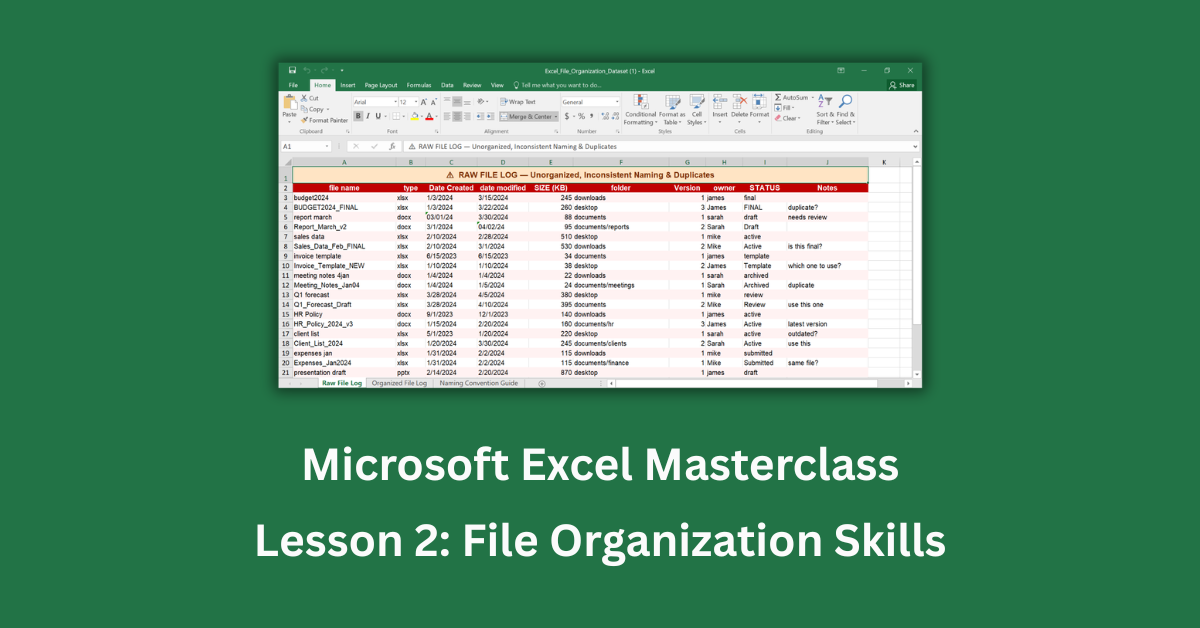
Most people learn Excel by jumping straight into formulas and data. File management gets skipped. Then, six months later, there are four versions of the same budget spreadsheet scattered across a desktop, a Downloads folder, and a USB drive — and nobody can tell which one is current.
Knowing how to open, save, and organize Excel files properly sounds basic. But it’s one of those foundational habits that separates people who use Excel confidently from those who lose work, overwrite files, or waste time hunting for the right version. Getting this right from the start saves real frustration down the road.
This guide covers the essential file management skills every Excel user needs — from the different ways to open a workbook, to choosing the right file format when saving, to building a folder structure and naming system that actually holds up over time.
Quick Takeaways:
- Always use Save As (Ctrl + Shift + S) when creating a new version — never overwrite your only copy of a file.
- The .xlsx format is the standard for most work, but .csv is better when sharing data with other software or systems.
- A clear naming convention prevents duplicate files. Include the year, a short description, and a version number — like 2026_Budget_v3.xlsx.
- Your folder structure should mirror how you search, not how files were originally created.
- AutoSave in Microsoft 365 works on OneDrive files only — local files still need manual saves with Ctrl + S.
How to Open Excel Files — More Ways Than You Think
The obvious way to open a file is to double-click it. But Excel gives you several options, and knowing them comes in handy more often than you’d expect.
Opening from Inside Excel
Go to File → Open (or press Ctrl + O). From here you can browse your computer, access OneDrive, or pull up recently opened files. The Recent list shows your last 50 files by default — you can pin frequently used workbooks so they always appear at the top.
Right-click any recent file to see extra options. You can open a copy (great for experimenting without touching the original), open in Protected View for files from email attachments, or open and repair a file that’s behaving strangely.
Opening Files You Didn’t Create
When you open an Excel file that came from the internet, an email attachment, or an external drive, Excel opens it in Protected View — a read-only sandbox mode. You’ll see a yellow bar at the top. Click “Enable Editing” to work with it normally, but only do this for files you trust.
I’ve seen people panic when Excel opens a file and it looks blank or strange. Nine times out of ten, it’s just a Protected View. Check for that yellow bar first.
Opening Non-Excel Files in Excel
Excel can open .csv, .txt, .ods, and several other formats. When you open a .csv file, Excel launches the Text Import Wizard to help you define how the data should be separated. It’s a bit clunky, but worth knowing — especially if you work with data exports from other tools.
How to Save Excel Files — Format Matters More Than You Think
Ctrl + S saves the current file. Simple. But the decisions around how and where you save are where most mistakes happen.
Choosing the Right File Format
When you click File → Save As, Excel asks for a format. The most common ones:
.xlsx — The default format. Use this for most work. It supports all modern Excel features, including formulas, charts, and formatting.
.xlsm — Use this when your workbook contains macros. If you save a macro-enabled file as .xlsx, Excel will strip the macros out.
.csv — Comma-separated values. No formatting, no formulas — just raw data. Use this when exporting data to another application, database, or system. It’s also the safest format for sharing data across platforms.
.pdf — Great for sharing a finished report that nobody should edit. Go to File → Export → Create PDF.
A common mistake is saving a file as .xlsx when it should be .xlsm. You’ll know it happened when your macros disappear after reopening. Always check the format if automation stops working.
Save As vs. Save — Know the Difference
Ctrl + S saves changes to the existing file. Ctrl + Shift + S (or File → Save As) creates a new copy. Use Save As whenever you’re starting a new version of a file — that way the previous version stays intact as a backup.
AutoSave and OneDrive
If you’re using Microsoft 365 and storing files on OneDrive, the AutoSave toggle (top-left corner) saves your work every few seconds automatically. This is genuinely useful. But it only works for cloud-stored files. Local files saved on your desktop or C: drive don’t get AutoSave — they need manual Ctrl + S. According to Microsoft’s own documentation, AutoSave is exclusive to files stored in OneDrive or SharePoint.
How to Organize Excel Files Properly
This is where most people’s systems break down. Folders named “New Folder (3)” and files named “Budget_FINAL_v2_ACTUALLY_FINAL.xlsx” are warning signs that the system has no system.
Build a Folder Structure That Mirrors How You Search
Think about how you look for files, not how they were created. Most people search by project or year first, then by type. A structure like this works well for most professionals:
- Finance/
└── Budgets/
└── 2026/
└── Expenses/
└── 2026/
- Sales/
└── Reports/
└── Client Lists/
- HR/
└── Templates/
└── Policies/
- Archive/
└── 2024/
└── 2025/
Keep active files in their project folders. Move completed or outdated files to Archive — don’t delete them unless you’re certain they’re no longer needed.
Use a Naming Convention You’ll Actually Stick To
The best naming convention is one that’s consistent, not perfect. A simple formula that works:
[Year]_[Description]_[Version].xlsx
So 2026_Q1_Forecast_v2.xlsx instead of forecast new final2.xlsx.
A few rules that make a real difference:
- Use underscores instead of spaces. Spaces cause problems in file paths and scripts.
- Include the year. Without it, a file called Budget_Final.xlsx becomes impossible to place in 18 months.
- Version numbers beat “FINAL.” Once you call something FINAL, the next version becomes FINAL2. Use v1, v2, v3 instead — it’s cleaner and more honest.
- Match the date format to YYYY-MM-DD when using dates. This sorts correctly in any file explorer. 2026-03-01 sorts before 2026-04-15. 3-1-26 does not.
Handle Duplicates Before They Multiply
Duplicate files are the single biggest source of file management confusion. They usually happen when someone saves a working copy to their desktop “just for now” — and then forgets about it.
Before you start working on any file, ask: Is there already a version of this somewhere? Use Windows Search (Win + S) or macOS Spotlight to check before creating a new one.
Google Workspace’s research on team file habits and productivity studies consistently point to version confusion as one of the top causes of rework on collaborative projects. You don’t need fancy software to solve it. You need a habit.
Use Excel’s Built-In Version History
If you store files on OneDrive or SharePoint, Excel keeps an automatic version history. Go to File → Info → Version History to see previous saves and restore any earlier version. This makes the “FINAL_v2_ACTUALLY_FINAL” naming approach completely unnecessary — your versioning is handled automatically.
For local files, the manual equivalent is creating an /Archive subfolder and moving old versions there when you create a new one.
Putting It All Together
File management isn’t glamorous. Nobody builds a career on having great folder structures. But the habits you set here — consistent naming, correct file formats, smart saving — become invisible infrastructure that makes everything else easier.
Start with one change: pick a naming convention and apply it to every file you save this week. Once that feels natural, build the folder structure. Then tackle the duplicates. Small improvements compound quickly.
If you want to go deeper on Excel fundamentals, Microsoft’s free Excel training center covers file formats, AutoSave, and workbook settings in detail.
Good file habits are the kind of thing you don’t appreciate until the day they save you from disaster.