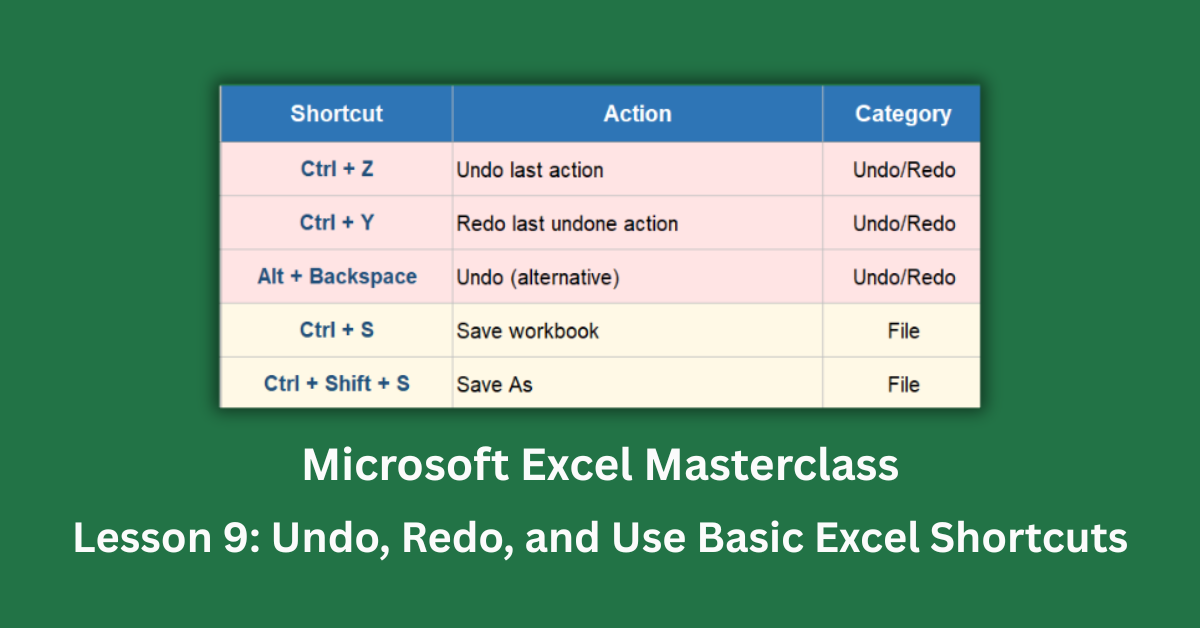
Every Excel user makes mistakes. The question isn’t whether you’ll accidentally delete the wrong row or paste over data you needed — it’s whether you know how to recover when it happens. Undo and Redo are the safety net that makes confident Excel work possible. Without them, every edit feels risky. With them, you can experiment freely, knowing that almost any mistake can be reversed in under a second.
Keyboard shortcuts are the other side of this lesson. Most people use Excel with their hands constantly moving between the keyboard and the mouse — typing something, reaching for the mouse to click a menu, moving back to the keyboard. That back-and-forth adds up. Studies on professional spreadsheet users consistently show that learning even a small set of keyboard shortcuts reduces task time significantly. The most commonly cited figure from productivity research is a 20–30% reduction in time spent on routine tasks once core shortcuts are internalised.
This post covers the Undo and Redo system fully, including what it can’t do (which matters more than people expect), followed by the essential Excel shortcuts every user should know. The examples throughout use a 30-row monthly budget tracker to keep everything grounded in real work.
Quick Takeaways:
- Ctrl + Z undoes your last action. Ctrl + Y redoes it. Excel keeps up to 100 undo steps per session — but that history disappears the moment you close the file.
- Some actions cannot be undone at all. Deleting a worksheet tab, running a macro, and using Remove Duplicates are all permanent once confirmed.
- Saving a file does not clear your undo history. You can save and still undo previous edits within the same session.
- The 15 shortcuts in this lesson cover 80% of daily Excel tasks. Learning them by name isn’t enough — they need to become muscle memory through repetition.
- Ctrl + 1 opens the Format Cells dialog. It’s faster than navigating the ribbon and gives you every formatting option in one place.
How Undo and Redo Work in Excel
Undo and Redo are the most important safety features in Excel. Press Ctrl + Z to undo the most recent action. Press it again to undo the one before that. You can undo up to 100 consecutive steps — Excel tracks every edit, format change, insert, and delete in a stack, and works through them in reverse order.
What You Can Undo
The list of undoable actions is long and covers almost everything you do day to day. Typing a value, deleting cell contents with the Delete key, applying formatting, inserting or deleting rows and columns, moving cells — all of these are fully reversible. If you accidentally delete a row, Ctrl + Z brings it back immediately, data and all.
In the budget tracker, try this: go to cell E8 and change the Actual spend from 2,450 to 3,100. Press Ctrl + Z. The value returns to 2,450 exactly as it was. Press Ctrl + Y to redo the change. 3,100 reappears. You can cycle back and forth as many times as you like. That’s the basic undo-redo loop and it works on virtually any action you take.
What You Cannot Undo
Here’s the part most people don’t learn until they’ve lost something. Four specific actions in Excel are permanent and cannot be reversed with Ctrl + Z.
Deleting a worksheet tab is the most dangerous one. Right-click a sheet tab and choose Delete, confirm the prompt, and the sheet is gone. Excel warns you, but once you click OK, there is no undo. If your deleted sheet wasn’t backed up, the data is lost.
Running a macro typically clears the undo stack. When a VBA macro executes, Excel usually cannot track its individual actions as undoable steps. After a macro runs, Ctrl + Z either does nothing or undoes something that happened before the macro started — not the macro’s changes.
Remove Duplicates on the Data tab is another permanent action. Once the dialog closes and rows are removed, Ctrl + Z will not restore them. Work on a copy of your data before running this feature.
Closing and reopening the file resets everything. Undo history is session-only. The moment the workbook closes, the history is gone. Saving the file, on the other hand, does not clear the history — you can save and still undo previous edits, which surprises a lot of people. Microsoft’s documentation on the undo feature explains this behaviour clearly.
Essential Excel Shortcuts for Everyday Use
Shortcuts only become useful when you stop thinking about them. The goal is automatic recall — pressing Ctrl + S without deciding to save, reaching for Ctrl + Z the instant something goes wrong. That level of fluency comes from deliberate repetition, not from reading a list.
Navigation Shortcuts
Ctrl + Home takes you to cell A1 from anywhere in the sheet. It’s the fastest way to get back to the top of any dataset. Ctrl + End jumps to the last used cell — in the budget tracker, that’s J33, the bottom-right corner of the data.
Ctrl + Arrow keys move to the edge of a data block. From E3 in the budget tracker, pressing Ctrl + Down Arrow jumps to E32, the last value in the Actual spend column, skipping nothing in between. This is how professionals navigate large datasets quickly.
Ctrl + Page Down moves to the next sheet tab. Ctrl + Page Up moves to the previous one. With four sheets in the practice file, these two shortcuts let you cycle through them without touching the mouse.
Editing Shortcuts
F2 puts the active cell into edit mode without clearing its contents. This is the correct way to fix part of a value. Clicking a cell and typing immediately replaces everything. F2 moves your cursor to the end of the existing content so you can edit surgically.
Ctrl + D fills down. Select a cell and extend the selection downward, then press Ctrl + D. The top cell’s content — whether a value or a formula — copies to every selected cell below it. In the budget tracker, if you want the same budgeted amount across all three months for a category, Ctrl + D from the first cell is faster than three separate pastes.
Ctrl + R does the same thing to the right. Select a formula in the leftmost cell, extend the selection rightward, and Ctrl + R copies the formula across — adjusting relative references automatically.
Alt + Enter inserts a line break inside a cell. Use this when a cell needs two lines of text. Without it, long text either spills into the next column or gets cut off.
Formatting Shortcuts
Ctrl + 1 opens the Format Cells dialog — the full formatting control panel with tabs for Number, Font, Border, Fill, and Protection. This is the fastest route to any formatting option, faster than hunting through the ribbon.
Ctrl + Shift + $ applies currency format to selected cells. Ctrl + Shift + % applies percentage format. Both are useful when you’re formatting a column of numbers quickly without opening any dialog.
Ctrl + B, Ctrl + I, and Ctrl + U apply bold, italic, and underline. These three are so fundamental that most users know them already, but they’re worth confirming — they work on cell content and on text inside the formula bar while editing.
Find and Replace Shortcuts
Ctrl + F opens the Find dialog. Type any value, text, or formula fragment to locate it in the sheet. Ctrl + H opens Find and Replace, which lets you replace values across the entire sheet in one operation.
In the budget tracker, pressing Ctrl + H and replacing “Office Supplies” with “Stationery and Supplies” updates all three matching rows at once. Then Ctrl + Z undoes all three replacements simultaneously. That’s undo working across a batch operation — it treats Find and Replace as a single action regardless of how many cells it changed.
The Most Important Paste Shortcut
Ctrl + Alt + V opens Paste Special. After copying any cell or range, this shortcut gives you precise control over what gets pasted: values only, formats only, formulas only, or a transpose that flips rows and columns.
For daily use, the most valuable option is pasting values. After copying a formula, Ctrl + Alt + V, then V, then Enter pastes only the calculated result — not the formula itself. The destination cell gets a plain number with no references. This is how you freeze a calculation before sharing a file or moving data to a different part of the sheet.
Building Shortcut Fluency: A Practical Approach
Knowing thirty shortcuts and using thirty shortcuts are two different things. The most effective approach I’ve seen is to add two or three new shortcuts per week rather than trying to learn everything at once. Choose shortcuts that apply to work you’re already doing. If you format cells frequently, start with Ctrl + 1 and Ctrl + Shift + $. If you navigate large datasets, start with Ctrl + End and Ctrl + Arrow.
The Shortcuts Reference Card in the practice file lists 40 shortcuts across nine categories, each rated by beginner priority. Work through the three-star items first. They cover undo, save, navigation, selection, fill down, copy-paste, AutoSum, and Format Cells — the foundations of fast Excel work.
Excel Campus has a curated shortcut guide with video demonstrations for many of the most commonly used shortcuts, which helps if you’re a visual learner.
The goal isn’t to memorise the full list in a week. It’s to shrink the distance between deciding to do something and actually doing it. Every shortcut you internalise is one less trip to the ribbon.