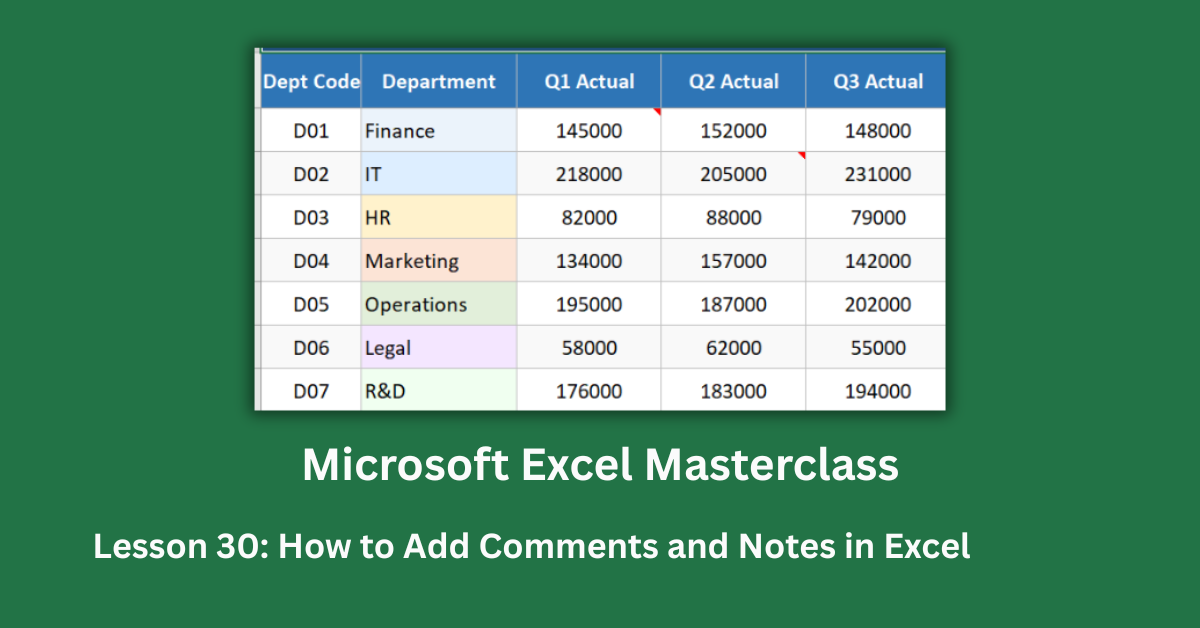
The NexaCorp annual budget tracker at the centre of this guide shows seven departments with a combined actual spend of GHS 4,252,000 against a GHS 4,130,000 budget — a GHS 122,000 overrun. The numbers alone don’t tell you why R&D is GHS 53,000 over budget (7.4%), why IT’s Q2 figure dipped before jumping in Q3, or why the Q4 forecast column is marked with a warning. The explanations live in the cells’ comments and notes. Remove them and the spreadsheet becomes a table of unexplained variances.
Knowing how to add comments and notes in Excel properly is the difference between a report that stands alone and one that needs a twelve-minute verbal explanation every time someone opens it. This guide walks through both tools — Notes (the yellow tooltip boxes) and Threaded Comments (the collaborative reply threads) — using real annotated cells from a budget tracker and a 12-employee performance review as working examples.
Version note: Notes are available in Excel 2003 and all versions including Excel 2016, 2019, 2021, and Microsoft 365. Threaded Comments with @mentions and reply threads were introduced in Microsoft 365 and are not available in standalone Excel 2016 or perpetual Excel 2019. If you’re on a standalone licence and the Threaded Comments option is missing from your Review tab, that’s why.
Quick Takeaways:
- Notes and Comments are different tools. Notes are static yellow text boxes for solo annotations. Comments are threaded discussions that support replies, @mentions, and email notifications.
- Shift+F2 adds a Note. Ctrl+Alt+M adds a Comment. Both sit on the Review tab, but they behave completely differently.
- Comments do NOT print by default. Notes can be printed. Configure both under File > Print > Page Setup > Sheet tab before distributing any report.
- Always run Document Inspector before sharing externally. File > Info > Check for Issues > Inspect Document. It finds and removes notes or comments containing sensitive data you may have forgotten are there.
- Resolve Comments when actions are done. Deletion removes the audit trail permanently. Resolving keeps the thread visible but marks it as closed.
Notes vs. Comments: Understanding the Difference
What a Note looks like and does
A Note appears as a small red triangle in the top-right corner of a cell. Hover over the cell and a yellow tooltip box expands with the annotation text and the author’s name at the top. Click away and it disappears. Notes are passive — they display information but trigger no notifications, support no replies, and create no conversation.
In the Budget Tracker, the Note on the Finance Q1 cell (GHS 145,000) reads: “Q1 Actuals sourced from Finance Controller’s report dated 31-Mar-2026.” That’s exactly what a Note is for. It explains data provenance. It’s factual, static, and needs no response.
The IT Q2 cell (GHS 205,000 — the lowest IT quarter in the year) carries a Note explaining the Q2 underspend: the cloud migration project was delayed to Q3, with GHS 18,000 carry-forward applied. That’s why the Q3 figure (GHS 231,000) is the highest IT quarter. Without the Note, you’d need to ask someone why Q2 dipped and Q3 spiked.
What a Threaded Comment looks like and does
A Threaded Comment shows a purple triangle or a speech bubble icon. Unlike a Note, clicking the cell opens a comment panel on the right side of the screen where you can read the full thread, reply, and see who said what and when. Comments support @mentions — type @FirstName and that person receives an email notification linking directly to that cell.
The performance review’s ANNOTATED sheet demonstrates this well. Patrick Nkrumah (EMP-010) has an average score of 40.0, the lowest in the 12-person review cohort, rating him At Risk. His reviewer cell carries a Threaded Comment: “@HR: Confirm whether EMP-010 qualifies for adjusted performance targets given the medical referral.” That’s a Comment, not a Note, because it requires a reply from someone else. Sending a notification via @mention is the only way to guarantee the HR team actually sees it.
How to Add Comments and Notes in Excel
Adding a Note
Click the cell you want to annotate. Press Shift+F2 — a yellow text box opens with your name pre-filled. Type your annotation and click anywhere outside the box to close it. That’s the fastest method.
Alternatively, go to the Review tab, click Notes, then select New Note. The same yellow box appears. To edit a Note later, select the cell and press Shift+F2 again, or right-click and choose Edit Note. To delete: right-click the cell and select Delete Note, or go to Review > Notes > Delete.
A practical template for budget and financial notes: [Context] | [Reason flagged] | [Action required] | [Owner] | [Due date]. The R&D budget cell in the Budget Tracker uses something close to this — it notes that the budget was increased from GHS 680,000 to GHS 720,000 and references the board resolution number. Six months later, that Note is still self-explanatory.
Adding a Threaded Comment
Click the cell, then press Ctrl+Alt+M. A comment input box appears on the right side of the screen. Type your message, and press Ctrl+Enter to post (not just Enter — that adds a line break). To @mention someone, type @ and start typing their name; Excel autocompletes from your Microsoft 365 contacts and sends them an email notification when you post.
Others can reply by clicking the cell, reading the thread in the Comments pane, and clicking Reply. The performance review uses this for Kofi Agyeman (EMP-006, average 56.25), whose Q4 score (60) was the highest in his four-quarter record. The Comment asks whether this is a sustained improvement or a one-quarter blip. That’s a question needing a team answer, not a solo annotation.
For a complete reference on all Comment navigation options, Microsoft’s documentation on adding comments in Excel covers threaded versus legacy behaviour across versions.
When to Use Which Tool
Use Notes for
Static, informational annotations that don’t need a response. Data source references. Formula explanations. Audit flags. Historical context. The Budget Tracker’s Q4 Forecast column carries a Note on the header cell flagging that all Q4 values are estimates pending board approval. That’s purely informational — it applies to every reader equally and needs no reply.
Notes also suit performance review records where factual context is needed. In the ANNOTATED review sheet, Kofi Agyeman’s Q3 score (52, down from 58 in Q2) carries a Note: “Score dropped due to extended sick leave — 3 weeks in August 2026.” That’s objective fact, not a discussion. Notes handle it correctly.
Use Comments for
Any annotation that requires action, discussion, approval, or a reply from someone else. If you’re writing an annotation and thinking “I need someone to respond to this,” it’s a Comment. The @mention capability is the deciding factor — if you need to notify a specific person and want a thread to track the conversation, Notes can’t do that.
The performance review’s threaded Comment on EMP-010 Patrick Nkrumah (At Risk, average 40.0) demonstrates this clearly. His Q1 score of 38 is flagged as a potential outlier linked to an occupational health referral. The Comment thread asks HR to confirm whether adjusted targets apply. That’s not a Note situation — it’s an action item with a named owner and a required response.
For more on @mentions and notification behaviour in Microsoft 365, Microsoft’s guide to using @mentions in comments explains exactly how notifications are triggered and what the recipient sees.
The Mistakes That Get People Into Trouble
Forgetting to remove internal Notes before sharing
The Best Practices sheet in the dataset flags this directly. Notes are fully readable by anyone with file access — they are not hidden, not protected, and not stripped out when you email a file. A budget file shared externally with internal Notes containing salary benchmarks, negotiation positions, or HR observations is a problem.
The fix: File > Info > Check for Issues > Inspect Document. In the dialog, tick “Comments and Notes” and click Inspect. If any are found, click “Remove All” before external distribution. This takes 20 seconds and is worth making a habit before every external share.
Leaving Comments unresolved indefinitely
The Budget Tracker’s total variance cell carries a Comment noting that the 2.95% overall overrun excludes Q4 forecast figures, which are estimates. Once the Q4 actuals land and the variance is confirmed, that Comment should be resolved. Leaving it open signals that the issue is still under discussion — even when it isn’t.
Resolving a Comment does not delete it. Click the three-dot menu on the comment, choose Resolve Thread, and the thread remains visible in the Comments pane marked as resolved. The audit trail is preserved. The inbox clutter is not.
Using Notes when Comments were needed
The RAW performance review sheet shows what happens when Notes are used where Comments were needed. Markers like “★ Add Comment — discuss with HR” sit as Note instructions next to Kofi Agyeman’s review cells. Without actual Threaded Comments, nobody receives a notification, nobody knows a discussion is needed, and the performance management conversation stalls.
If you’ve added a Note but realise it should have been a Comment: right-click the cell, delete the Note, then add a Comment (Ctrl+Alt+M) with the same content plus the relevant @mention. The thread starts fresh, but the right person finally gets notified.
A Practical Approach to Annotating Financial Data
The Budget Tracker in this guide demonstrates annotation done right. Every cell that deviates from budget or carries an estimate has a Note or Comment explaining why. The R&D overrun (GHS 53,000, 7.4%) is the largest variance — a Note on the budget cell logs the board-approved increase from GHS 680,000 to GHS 720,000 with the resolution reference. Legal is the only department under budget (-GHS 10,000, -4%), and a Note explains the underspend.
Without those six annotations across the tracker, someone reviewing the file — an auditor, a board member, a new finance team member — faces an unexplained GHS 122,000 overrun with no trail. With them, the overrun is fully documented and reviewable without requiring the original author to be in the room.
That’s the case for annotating financial data properly. It’s not extra work. It’s the difference between a spreadsheet and a record.