The NexaCorp order dataset used throughout this guide contains 20 customer orders, GHS 164,040 in total revenue, and nine different ways to spell the delivery status “In Progress.” Some cells say “In Process.” Others say “in progress” in all lowercase. Two say “COMPLETE” in capitals. Without standardising all of these, a COUNTIF formula counting completed orders returns wrong results, a pivot table groups statuses as separate items, and any filter you apply misses at least two variants. That’s the real cost of inconsistent data.
Find and Replace in Excel fixes this in minutes. Press Ctrl+H to open the dialog, type what you want to find, type what you should replace it with, and click Replace All. That’s the basic version. But the options — Match Case, Match Entire Cell Contents, Use Wildcards, and the Look In setting — are what separate a safe cleanup from one that silently corrupts data you didn’t intend to touch. This guide walks through all of them with specific examples drawn directly from that 20-order dataset.
These features are available in Excel 2016 and all later versions, including Excel 2019, Excel 2021, and Microsoft 365. Find All, wildcards, and format-based searching are all available in those versions. The Look In: Comments option and format-based replacement require the full desktop version of Excel — they’re limited in Excel for the web.
Quick Takeaways:
- Always click Find All before Replace All to preview every cell that will change. If the count looks too high, add more specific text or tick Match Entire Cell before proceeding.
- Match Case and Match Entire Cell are both OFF by default. Forgetting this is how “complete” becomes “Completedd” — the replace catches “complete” inside “Completed” and adds a second “d.”
- Operation order matters. Replace “In Process” before “In Progress” — otherwise the longer string partially absorbs the shorter one.
- One targeted Replace All can update an entire column instantly. All 20 email addresses in the dataset switched from @techpro.gh to @nexacorp.gh in a single click.
- Wildcards turn Find into an auditing tool. The ? character matches any single character — searching Recei?t finds both “Receipt” and “Reciept” across the whole sheet without you knowing the exact typo first.
How to Use Find and Replace in Excel
The basics: opening and running a replacement
Press Ctrl+H to open the Find and Replace dialog. The Find tab (Ctrl+F) is for searching only. The Replace tab is what you want for making changes.
Type your search term in the “Find what” field and your replacement in the “Replace with” field. Three buttons handle the actual replacement: Find Next moves through matches one at a time, Replace changes the current match and moves to the next, and Replace All changes every matching cell in one step.
For most cleaning tasks, Replace All is what you want. Use Find Next and Replace only when you’re uncertain whether every match should change — for example, when the same word appears in both data and notes columns with different intended meanings.
Click Options to see the full power
The dialog starts in compact mode. Click the Options >> button to expand it. This reveals six settings that completely change how replacements behave: Match Case, Match Entire Cell, Search direction (By Rows or By Columns), Look In (Values, Formulas, or Comments), Use Wildcards, and whether to search within a selection or the entire sheet.
I find that most people close the dialog after one replacement and reopen it for the next, which resets all options to defaults. Keep the dialog open between operations — just clear the Find and Replace fields and type the next search term without closing the window.
Cleaning Region Names: Why Match Entire Cell Matters
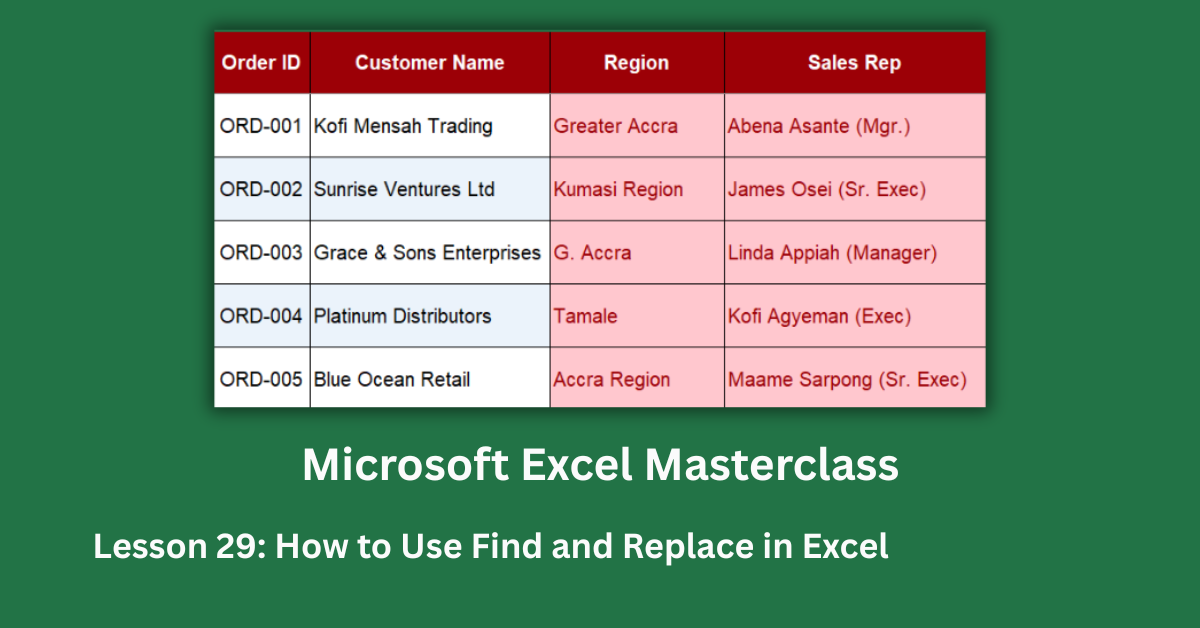
The dataset’s Region column has six variants for what should be two values: “Greater Accra” appears as “Greater Accra”, “G. Accra”, and “Accra Region.” “Kumasi” appears as “Kumasi”, “Kumasi Region”, and “K’si.”
“G. Accra” and “K’si” are safe to replace without any special options. They’re specific enough that nothing else in the dataset contains those strings. Replace them with Replace All and move on.
“Accra Region” and “Kumasi Region” are different. If you type “Accra” in the Find field to catch “Accra Region,” you’ll also match “Greater Accra” — turning it into “Greater Greater Accra.” The fix is to tick Match Entire Cell Contents in the Options panel. Now Excel only replaces cells where the entire content is exactly “Accra Region.” The “Greater Accra” cells are untouched.
The same logic applies to “Kumasi Region.” The word “Kumasi” already exists in correctly-spelled cells. Match Entire Cell ensures only the full string “Kumasi Region” gets updated, not every cell that contains the word “Kumasi.”
For a detailed walkthrough of Match Entire Cell and when to apply it, Microsoft’s Find and Replace documentation covers every option in the dialog.
Standardising Status Fields: Why Order and Match Case Both Matter
The Delivery Status column in the raw dataset has nine distinct values that should be three: “Processing,” “Completed,” and “Pending.” This is where two rules come into play together.
Run replacements in the right order
“In Process” and “In Progress” share the first nine characters. If you replace “In Progress” first, that replacement runs clean. But if you then search for “In Process,” you’ll find nothing — the word has already become “Processing” in some cells. More dangerously, if you run them the other way around and replace “In Process” → “Processing” first, any cell containing “In Progress” now partially changes: “In Process” within “In Progress” becomes “Processsing” (corrupted).
The safe sequence: replace “In Process” first (4 cells), then “In Progress” (3 cells), then “in progress” with Match Case enabled (2 cells). Each operation targets only what remains.
Match Case prevents double letters
“COMPLETE,” “complete,” and “Completed” all need to become “Completed.” Without Match Case, searching “complete” matches all three simultaneously. Replacing “complete” with “Completed” turns “Completed” into “Completedd” — the replace catches the “complete” inside “Completed” and appends “d” again.
The solution: enable Match Case and run three separate replacements. Search “COMPLETE” (uppercase only) → “Completed.” Search “complete” (lowercase only) → “Completed.” Search “Completed” → “Completed” to confirm nothing is left wrong. With Match Case on and Match Entire Cell ticked, each search is precise enough to touch only the intended cells.
“PENDING” and “Pending” follow the same logic. Two cells said “PENDING” in capitals. Without Match Case, replacing “PENDING” would also match “Pending” and add a second “g” to the end.
One Replace for Nine Product Names
The product column in the raw dataset contains nine cells using the old brand name “TechPro” — spread across TechPro Basic, TechPro Plus, and TechPro Standard. After a company rebranding, all three need to read “NexaPro.”
A single replacement handles all nine at once: search “TechPro,” replace “NexaPro,” click Replace All. No wildcards, no options, no multiple passes. The result: nine cells updated instantly, and the revenue figures per product now read GHS 44,100 for NexaPro Basic, GHS 67,240 for NexaPro Plus, and GHS 52,700 for NexaPro Standard.
This works safely here because “TechPro” only appears in the product column. Before using this approach on any dataset, run Find All first and check the results list. If “TechPro” appeared in customer names or notes too, you’d want to select column E and run the replacement within that selection only.
Bulk Email Domain Update: 20 Cells in One Click
All 20 account manager emails in the dataset end in “@techpro.gh” following the company’s previous domain. After migrating to “@nexacorp.gh,” every email needs updating.
Search “@techpro.gh,” replace “@nexacorp.gh,” Replace All. Every email address updates in one step because the domain string is specific enough that it can’t appear anywhere else in the file. No Match Case, no Entire Cell — just a precise search term that has no risk of partial matches.
This is Find and Replace at its most efficient: one operation, one click, all 20 emails corrected.
Using Wildcards to Catch Typos You Don’t Know About
The dataset’s Notes column contains 15 typos across 20 rows — a realistic rate for notes fields typed quickly. Some are obvious (“Custmer” for “Customer”). Others, like “Reciept” for “Receipt,” are easy to miss because the word looks almost right at a glance.
Wildcards help you find these. Enable Use Wildcards in the Options panel and search Recei?t. The ? matches any single character — so this search finds both “Receipt” and “Reciept” without you needing to know which misspelling is present. Use Find All to see every match, audit the results, then run the appropriate replacement.
The * wildcard matches any number of characters. It’s more powerful but riskier. Searching Tech* with wildcards would match “TechPro Basic,” “TechPro Plus,” and any cell containing “Tech” anywhere. Always scope wildcard searches to a specific column by selecting that column before opening Find and Replace.
Searching Formulas and Comments
The default Look In setting is “Values” — the displayed output of each cell. This is correct for most cleaning tasks. But two situations need a different setting.
If you’re looking for a formula that references a specific sheet — say, a cross-sheet formula referencing “Q1_Summary” — searching Values returns nothing. The formula displays a number, not text. Change Look In to Formulas to search inside formula text itself. The sheet reference “Q1_Summary” will be found in any cell where the formula contains it.
The same applies to cell comments. Notes typed into comments (the little red triangles) are invisible to a Values search. Change Look In to Comments to search and replace text within them.
Building a Replacement Log
The dataset includes an 18-operation replacement log covering every cleaning task from region standardisation to currency label corrections. Each entry documents the search term, replacement, column scope, required options, and what breaks if you skip those options.
Before running any batch replacement on a real file, build a similar log. Document what you’ll search, what you’ll replace, and which options you’ll enable. Run Find All on each search term before clicking Replace All. Check the count — if it’s higher than expected, narrow the search or add Match Entire Cell before proceeding.
That process turns Find and Replace from a tool you use nervously into one you use confidently. The GHS 164,040 revenue total in the cleaned dataset only adds up correctly because the status, region, and product fields are consistent. Inconsistent fields silently skew every COUNTIF, SUMIF, and pivot table built on top of them.