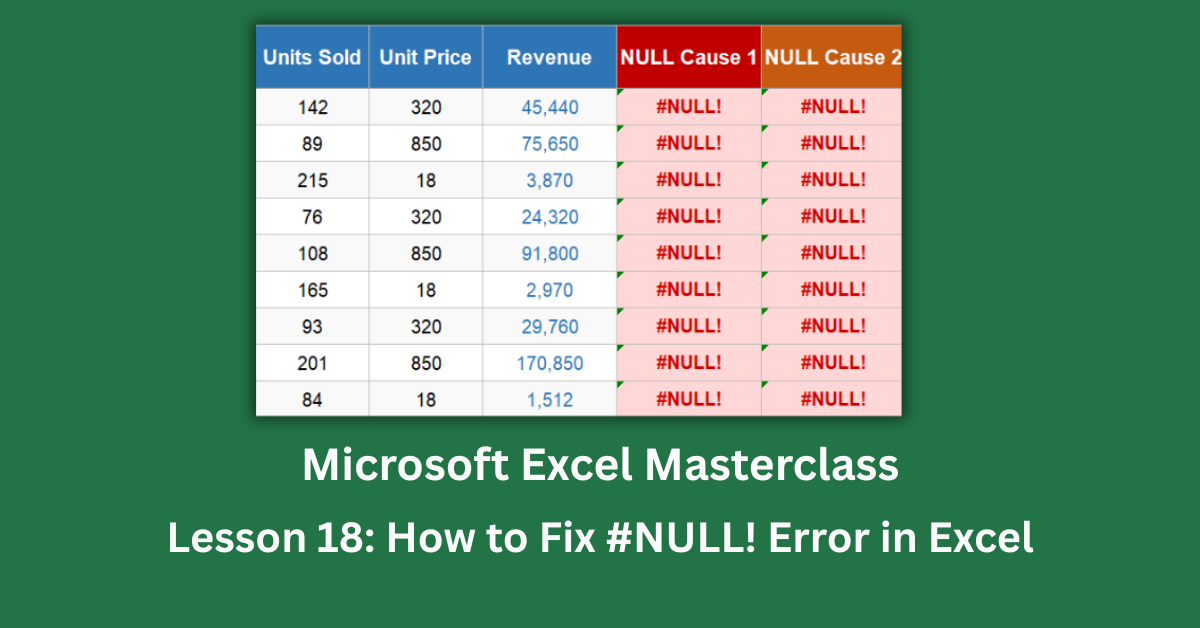
Of all Excel’s error messages, the #NULL! error might be the least intuitive. It doesn’t say “not found” or “wrong type” or “divided by zero.” It just says NULL — and most users stare at it wondering what they did wrong. The answer is almost always the same: a space ended up somewhere in a formula where it shouldn’t be.
That space isn’t neutral in Excel. The space character is actually an operator with a specific meaning: it tells Excel to find the intersection of two ranges, meaning the cells that appear in both ranges simultaneously. Most of the time, no such intersection exists. Two cell addresses separated by a space, two ranges in different columns, two non-adjacent regions — none of these overlap, so Excel returns #NULL! to say the intersection is empty.
This post walks through all four ways this error appears in real spreadsheets, with examples from a 25-branch retail sales dataset covering January to May 2026. Every broken formula has a direct fix, and by the end, you’ll understand exactly what the space operator does and why it matters.
Quick Takeaways:
- #NULL! means Excel found a space where it expected a comma or colon. The space character is Excel’s range intersection operator, and when the referenced ranges don’t overlap, #NULL! appears.
- Replace the space with a comma to separate two arguments: =SUM(E4,F4) not =SUM(E4 F4).
- Replace the space with a colon to define a range: =SUM(E4:G4) not =SUM(E4 G4).
- Non-overlapping ranges with a space between them always produce #NULL!. Use a comma to add them instead: =SUM(A4:A8,C4:C8).
- The space operator is real and legitimate in Excel — it just almost never belongs in the formulas most people write.
What the Space Operator Actually Does in Excel
Before getting into the fixes, it helps to understand why Excel treats a space as an operator at all.
Excel has three range operators. The colon (:) creates a range from one cell to another. The comma (,) combines multiple separate references or arguments. The space creates an intersection — it returns only the cells that exist in both of the specified ranges at the same time.
The intersection operator has genuine uses. In a spreadsheet with named rows and named columns, you can write =Jan Sales (with a space) to get the value at the intersection of the Jan row and the Sales column. That’s a real, intentional feature. The problem is that a space in a formula almost always gets there by accident — a missing comma, a missing colon, a paste from another application. And accidentally created intersections are almost always empty.
An empty intersection is #NULL!.
How to Fix the #NULL! Error in Excel
The dataset used throughout this post tracks retail performance across five branches — Accra Main, Kumasi Hub, Takoradi, Tamale, and Cape Coast — from January to May 2026. It contains 25 rows of monthly sales records, each showing Units Sold and Unit Price. The error columns (H through K) demonstrate four distinct ways the space operator slips into formulas.
Cause 1: Space Instead of a Comma Between Arguments
Broken formula: =SUM(E4 F4)
What Excel does: Reads the space as the intersection operator. Asks: “what cell is at the intersection of E4 and F4?” E4 and F4 are completely different cells with no shared intersection. The answer is nothing. Result: #NULL!
Column H of the dataset shows this across all 25 branch-month rows. Every row has a formula like =SUM(E4 F4) instead of =SUM(E4,F4). It’s a single missing character that makes every formula in the column fail.
Fix: Replace the space with a comma.
=SUM(E4,F4) — this correctly tells Excel to add the value in E4 to the value in F4 as two separate arguments.
Column L in the dataset shows the corrected version. For Accra Main in January, E4 holds 142 (units sold) and F4 holds 320 (unit price). The correct formula returns 462 — the sum of both. The broken formula returns #NULL!.
You can also write =E4+F4 to achieve the same result. Either approach works. The key is that a comma or a plus sign is needed, never a space.
Cause 2: Space Instead of a Colon in a Range
Broken formula: =SUM(E4 G4)
What Excel does: Reads the space as the intersection operator. Asks: “what cell is at the intersection of column E, row 4 and column G, row 4?” These are two distinct cells in different columns with no intersection. Result: #NULL!
Column I of the dataset has this pattern. The intention was probably =SUM(E4:G4) — summing everything from E4 across to G4. The colon defines a range; the space tries to find an intersection.
Fix: Replace the space with a colon.
=SUM(E4:G4) — this correctly creates a range from E4 to G4 and sums every cell between them, including E4, F4, and G4. Column M shows the corrected version, which returns the proper range total.
This is the most common version of the error I’ve seen in practice. Someone is typing quickly, hits the spacebar instead of Shift+colon, and the formula breaks silently. The formula bar shows =SUM(E4 G4) and it looks almost identical to =SUM(E4:G4) unless you look carefully.
Cause 3: Non-Overlapping Ranges With a Space Between Them
Broken formula: =SUM(A4:A8 C4:C8)
What Excel does: The space between the two ranges means “find the cells that appear in both A4:A8 and C4:C8.” Column A and column C share no cells. Their intersection is empty. Result: #NULL!
Column J of the dataset demonstrates this. The formula tries to intersect a range in column A with a range in column C — two completely separate columns that never overlap.
Fix: Replace the space with a comma.
=SUM(A4:A8,C4:C8) — the comma joins the two ranges as separate arguments to SUM, adding all the values across both ranges together. This is the correct syntax for summing non-adjacent ranges.
This cause trips up users who have learned that =SUM(A1:A10 B1:B10) looks like “sum A and B” but actually means “intersection of A and B.” Microsoft’s guide to using Excel range operators covers this distinction in detail.
Cause 4: Space Operator Between Two Single Non-Adjacent Cells
Broken formula: =E4 G4
What Excel does: Reads this as the intersection of the single cell E4 and the single cell G4. Two individual non-adjacent cells cannot intersect. Result: #NULL!
Column K of the dataset shows this in its simplest form — no function, just two cell references separated by a space. It looks like it might add them or display them side by side. It does neither.
Fix: Add a plus sign or wrap in SUM with a comma.
=E4+G4 or =SUM(E4,G4) — both correctly add the two values together without involving the intersection operator.
Why This Error Is So Easy to Miss
The #NULL! error is particularly sneaky because the broken formula looks almost correct. =SUM(E4 F4) and =SUM(E4,F4) differ by exactly one character. At a glance, in a small formula bar, the difference between a space and a comma is hard to see.
Copying formulas from other applications — word processors, emails, non-English Excel versions — is a frequent source of this error. Some regional Excel settings use semicolons as argument separators instead of commas. When those formulas are pasted into English Excel, the semicolons may arrive as spaces or get dropped entirely, producing #NULL! immediately.
The Rule That Prevents All Four Causes
Memorising one rule prevents this error entirely: the space character should never appear inside a formula reference.
If you need to define a range, use a colon: E4:G4.
If you need to add separate cells or ranges, use a comma: E4,F4 or A4:A8,C4:C8.
If you need to add two individual cells, use a plus sign: =E4+G4.
The space operator serves exactly one purpose: finding the intersection of two named ranges in a structured spreadsheet. Outside of that specific use case, a space in a formula is always a mistake.
Open the practice file and look at the differences between the error columns (H through K) and the corrected columns (L and M) on the first sheet. Then check the Fixed sheet to see how the complete analysis looks with clean formulas throughout. The Operator Reference tab on the fourth sheet maps the colon, comma, and space side by side with examples — useful to keep open while writing formulas in complex workbooks.