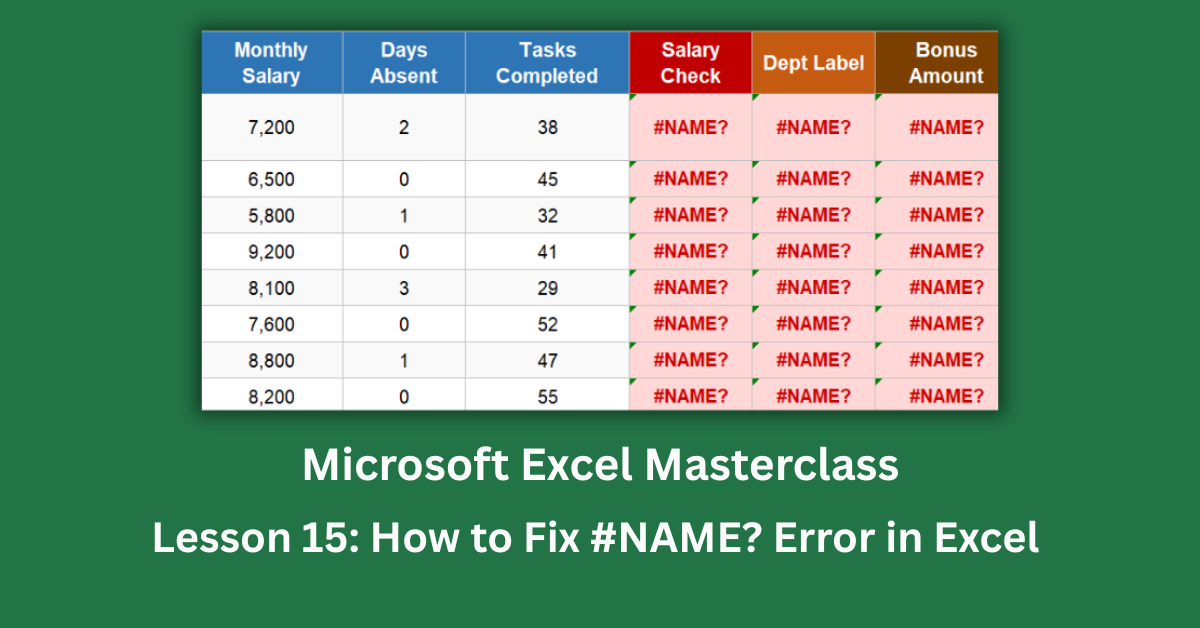
The #NAME? error in Excel means one thing at its core: Excel read something in your formula and didn’t recognise it. It could be a misspelled function name, a text string missing its quotes, a named range that was never created, or a function your version of Excel simply doesn’t support. The error message itself won’t tell you which — it just says #NAME? and leaves you to figure out the rest.
What makes this error interesting is that it usually points to a small, fixable mistake. Unlike #REF! errors where something in your spreadsheet’s structure has been destroyed, a #NAME? error almost always means one precise thing needs correcting. Find that thing and the formula works. The challenge is knowing where to look, especially when the formula is long or when the cause isn’t obvious.
This post covers every cause of the #NAME? error, with the exact fix for each one. Examples come from an HR metrics dataset where six different error types appear across different columns — including one that’s particularly easy to miss on older Excel versions.
Quick Takeaways:
- #NAME? always means Excel doesn’t recognise something in your formula. Check the formula bar for any word that isn’t a function name, cell reference, or number.
- Unquoted text is the second most common cause. =IF(A2=Finance,”Yes”,”No”) should be =IF(A2=”Finance”,”Yes”,”No”) — text comparisons always need double quotes.
- XLOOKUP, FILTER, UNIQUE, and LAMBDA produce #NAME? in Excel 2016 and earlier. These functions only exist in Excel 2019 and Microsoft 365.
- Use Excel’s autocomplete (Tab key) rather than typing function names manually. If the dropdown doesn’t suggest the function, it either doesn’t exist or is spelled wrong.
- Check Formulas → Name Manager before using a named range in a formula. If the name isn’t listed there, the formula will error immediately.
What Causes the #NAME? Error in Excel
The #NAME? error has seven distinct causes. Most are quick fixes — the tricky ones are the two where the problem isn’t in the formula at all.
Cause 1: Typo in a Function Name
This is the most common source of #NAME?. Type =SUMM(A1:A10) instead of =SUM(A1:A10) and Excel has no idea what SUMM is. Common culprits include AVRAGE (should be AVERAGE), COUTIF (COUNTIF), CONCATINATE (CONCATENATE), and VLOKUP (VLOOKUP).
Excel’s formula bar shows recognised function names in a different colour from unrecognised ones. If your function name doesn’t turn blue when you type it, that’s your signal something is wrong.
The fix is simple: use the autocomplete dropdown. Type the first two or three letters of any function and a list of matching functions appears. Press Tab (not Enter) to accept the highlighted suggestion. Excel inserts the correct spelling and opens the argument prompt automatically. If no matching function appears at all, the function either doesn’t exist or isn’t available in your Excel version.
Cause 2: Text Not Wrapped in Double Quotes
In Excel formulas, any literal text you compare against or include must be in double quotes. =IF(C4=Finance,”Yes”,”No”) looks reasonable, but Excel reads “Finance” without quotes as a named range or variable name — not as a text string. Since no such named range exists, you get #NAME?.
The rule is consistent and worth memorising: cell references and numbers don’t need quotes. Everything else does. “Finance”, “Yes”, “Passed”, “Active” — all text comparisons and text arguments need to be wrapped in double quotes.
In the HR dataset, column H uses =IF(C4=Finance,”Yes”,”No”). The fix is =IF(C4=”Finance”,”Yes”,”No”). One pair of quotes, problem solved.
Cause 3: Undefined Named Range
When a formula references something that looks like a named range — a word without quotes, like BonusRate or AnnualTarget — Excel searches the Name Manager for a matching name. If no such name has been defined, #NAME? appears.
In column I of the dataset, the formula =D4*BonusRate errors because BonusRate was never created as a named range. Two approaches fix this.
Option A: Define the named range. Go to Formulas → Name Manager → New. Give it the exact name used in the formula (BonusRate), set the Refers To field to the cell holding the rate value, and click OK. The formula resolves immediately.
Option B: Replace the named range with a direct cell reference. Change =D4*BonusRate to =D4*$M$3 where M3 holds the rate. Direct references never cause #NAME? errors and require no maintenance.
For shared files, Option B is generally more reliable. Named ranges can be accidentally deleted or renamed, breaking every formula that uses them.
Microsoft’s guide to defining and using named ranges walks through the creation process in detail.
Cause 4: Add-in Function Not Installed
Some functions belong to external add-ins rather than core Excel. If the add-in is disabled or not installed, Excel has never heard of the function and produces #NAME?. Common examples include functions from @RISK, Solver, Power Pivot, or custom corporate tools.
If you open a file and see #NAME? on a function you’ve never encountered, this is likely the cause. Check File → Options → Add-ins to see which add-ins are available and which are currently enabled.
For files shared across teams, the practical fix is to replace add-in functions with built-in equivalents where possible. In the dataset, column J used a custom RISKVAL() function to score absence risk. The replacement formula =IF(E4>2,”High Risk”,IF(E4>0,”Medium”,”Low Risk”)) achieves the same result using only built-in IF logic — no add-in required.
Cause 5: Function Not Available in Your Excel Version
This is the version-compatibility trap that catches people more and more often as Microsoft 365 functions spread. XLOOKUP, FILTER, UNIQUE, SORT, TEXTSPLIT, LET, and LAMBDA are all Microsoft 365 / Excel 2019+ functions. Open a file containing any of them in Excel 2016 or earlier and every formula using them shows #NAME?.
The formula isn’t broken. Your Excel version simply doesn’t include that function yet.
Column K in the HR dataset uses XLOOKUP. On a modern machine, it works fine. On Excel 2016, it produces #NAME? because XLOOKUP was introduced in 2019.
The fix for shared files: replace with version-safe alternatives. XLOOKUP becomes =IFERROR(VLOOKUP(A4,$A$4:$B$28,2,0),”Not Found”). FILTER can be approximated with Advanced Filter or a helper column using IF. UNIQUE can be replaced with a PivotTable for deduplication.
Before building a file with newer functions, check the oldest Excel version anyone in your team or organisation uses. Microsoft’s Excel function compatibility checker notes which functions are available from which version.
Cause 6: Semicolon Instead of Colon in a Range
This one is regional but surprisingly common when files move between countries. A range like E4:E28 uses a colon between the start and end cells. In some European regional settings, Excel uses semicolons to separate function arguments. This creates confusion: people sometimes write =SUM(E4;E28) thinking it means the range from E4 to E28.
It doesn’t. E4;E28 is two separate arguments, not a range. Excel can’t interpret it as a range and #NAME? or #VALUE! results.
The fix: replace the semicolon with a colon — =SUM(E4:E28). Semicolons separate function arguments (like the comma in =IF(A2>10,”High”,”Low”)). Colons define ranges. These two uses don’t overlap.
Cause 7: Text Joined With + Instead of &
Users coming from other tools sometimes try =”Hello “+A2 to join text. In Excel, the + operator is for addition. Joining text requires the & operator or the CONCAT function. =”Hello “+A2 produces #VALUE! for text but can produce #NAME? when the unquoted text is interpreted as a named range.
The fix: =”Hello “&A2 or =CONCAT(“Hello “,A2).
How to Diagnose #NAME? in Three Steps
When you see the error, work through this quickly:
Click the cell and read the formula bar carefully. Any word that isn’t a standard function name, a cell reference, or a number in quotes is a candidate for the problem. Check if it’s a function name (try typing it fresh and see if autocomplete finds it), a text string (add quotes), or a named range (check Name Manager).
If the formula looks correct but still errors, consider the version question. Does the formula use XLOOKUP, FILTER, UNIQUE, or any function that appeared after 2018? If yes, that function may not be available in the version of Excel opening the file.
If the formula still looks right after those two checks, look for a semicolon where a colon should be, or a function name that’s one letter off from a real one.
The One Habit That Prevents Most #NAME? Errors
Never type function names manually. Always use autocomplete.
Type =SU and wait for the dropdown. Scroll to SUM and press Tab. The function inserts with correct spelling and opens argument guidance. This single habit eliminates cause 1 (typos) entirely and catches cause 5 (version unavailability) because functions not in your Excel version won’t appear in the dropdown at all.
It takes a little longer than typing the full name from memory. That’s exactly the point.
Open the practice file and compare the error columns in Sheet 1 to the corrected formulas in Sheet 2. The fixes are small — usually one character or a pair of quotes. But each one is precise, and seeing the before and after side by side makes the pattern stick.